
Getting Started with Xbox Cloud Gaming for GTA 6
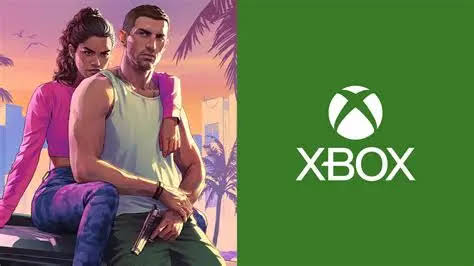
Xbox Reportedly Secures exclusive cloud streaming rights for Grand Theft Auto VI, meaning the game will be playable on PC at launch via the cloud. This guide walks you through every step to stream GTA 6 the moment it drops on November 19, 2026.
Confirm Your Subscription
To unlock cloud streaming, you need an active Xbox Game Pass Ultimate subscription. This tier bundles Xbox Live Gold, Game Pass for console, and the cloud gaming service.
- Visit account.microsoft.com and verify your subscription status.
- If you’re not subscribed, click the “Join Game Pass Ultimate” button and follow the checkout flow.
Pro Tip: Microsoft often offers a 30‑day free trial for new users. Activate it now to test the service before committing.
Install the Xbox App on Your PC
The Xbox app is the gateway to cloud streaming. Download it from the Microsoft Store or the official Xbox website.
- Open the Store, search for “Xbox,” and click Install.
- Launch the app and sign in with the same Microsoft account tied to your Game Pass Ultimate.
Pro Tip: Enable the app’s “Start with Windows” option for instant access.
Check Your Network Requirements
Cloud gaming demands a stable, high‑speed internet connection. Microsoft recommends at least 10 Mbps for 720p, 20 Mbps for 1080p, and 35 Mbps for 4K.
- Run a speed test on speedtest.net.
- If you’re below the recommended threshold, consider switching to a wired Ethernet connection or upgrading your plan.
Pro Tip: Close bandwidth‑heavy applications (e.g., downloads, video calls) before launching the stream.
Add GTA 6 to Your Library
When the game launches on November 19, 2026, it will appear in the Xbox Game Pass catalog under the “New Releases” banner.
- Navigate to the “Game Pass” tab in the Xbox app.
- Locate “Grand Theft Auto VI” and click “Add to library.”
Pro Tip: Pre‑add the title now to receive a push notification the moment it becomes streamable.
Launch the Cloud Stream
With the game added, you can start streaming directly from the app without downloading any files.
- Select GTA 6 in your library and hit the “Play” button.
- The cloud session will spin up on a Microsoft data center nearest to you.
Pro Tip: If you experience latency, switch the streaming region in the app’s settings to a closer data center.
Optimize In‑Game Settings for Cloud Play
Even though the game runs on powerful remote servers, you can fine‑tune visual fidelity to match your connection.
- Set “Resolution” to 1080p for a balance of clarity and smoothness.
- Enable “Dynamic Resolution Scaling” to let the cloud adapt to bandwidth fluctuations.
- Turn off “Ray Tracing” if you notice frame drops.
Pro Tip: Use the “Performance Mode” preset for a consistent 60 fps experience.
Use a Compatible Controller
Xbox Cloud Gaming supports a range of controllers, but the Xbox Wireless Controller offers the most seamless integration.
- Connect the controller via Bluetooth or a USB‑C cable.
- Ensure the controller is recognized in the Xbox app’s “Devices” menu.
Pro Tip: Enable “Controller Vibration” for immersive feedback, but disable it if it introduces input lag.
Save Your Progress to the Cloud
All cloud sessions automatically sync with your Xbox Live profile, preserving saves, achievements, and settings.
- When you exit the game, the session ends and your data is uploaded instantly.
- You can resume on any device—PC, Xbox console, or mobile—by signing in with the same account.
Pro Tip: Periodically check the “Saved Games” section in your profile to verify that recent progress is stored.
Troubleshoot Common Issues
If the stream stalls or visual quality drops, try these steps.
- Refresh the app: Close and reopen the Xbox app.
- Switch network: Move from Wi‑Fi to Ethernet or a 5 GHz band.
- Clear cache: In Windows Settings, go to “Apps > Xbox > Advanced options > Reset.”
Pro Tip: Keep the app updated; Microsoft releases performance patches weekly during major launches.
FAQ – Your Most Pressing Questions Answered
Will GTA 6 be playable on PC without a console?
Yes. Xbox Reportedly Secures exclusive cloud streaming rights, allowing PC gamers to launch the title directly from the Xbox app without a physical console.
Do I need a high‑end PC to stream GTA 6?
No. The heavy lifting is done on Microsoft’s servers. A modest PC that can run the Xbox app and meet the internet speed recommendations will suffice.
Is the exclusive streaming deal permanent?
Current reports indicate the exclusivity applies to the launch window and early post‑launch period. Microsoft has not disclosed the exact duration, but the deal gives Xbox Cloud Gaming a competitive edge at launch.
Final Thoughts
With Xbox Reportedly Secures exclusive cloud streaming rights for GTA 6, the barrier between console and PC is thinner than ever. By following the steps above, you’ll be ready to dive into Los Santos the instant the game drops on November 19, 2026—no downloads, no hardware upgrades, just pure cloud‑powered chaos. Happy streaming!