
Best Graphics Settings for Smooth Gameplay Without Losing Visual Quality
Best Graphics Settings are the holy grail for anyone who wants to crush lag, keep FPS soaring, and still enjoy a visually stunning world. In 2026 the balance has finally shifted from “choose one or the other” to a practical, data‑driven formula that works on mid‑range rigs and high‑end rigs alike.
From the latest DLSS breakthroughs to smart ray‑tracing toggles, the community has distilled a handful of settings that consistently deliver high, stable frame rates while preserving the artistic intent of each title.
Why Performance Matters in 2026
Competitive gamers know that a single dropped frame can cost a round, a rank, or even a tournament prize. The Best Graphics Settings guide for competitive play emphasizes three pillars: high and stable FPS, low input lag, and clear visuals that aid reaction time.
Even casual players feel the sting of stutter when a game spikes from 144 FPS to 45 FPS mid‑match. Modern titles like Warzone Beta and Crimson Desert push hardware hard, but the right settings keep the experience buttery smooth.
Core Settings That Deliver Both Speed and Beauty
Across the board, the following adjustments have proven to be the most effective according to recent performance analyses:
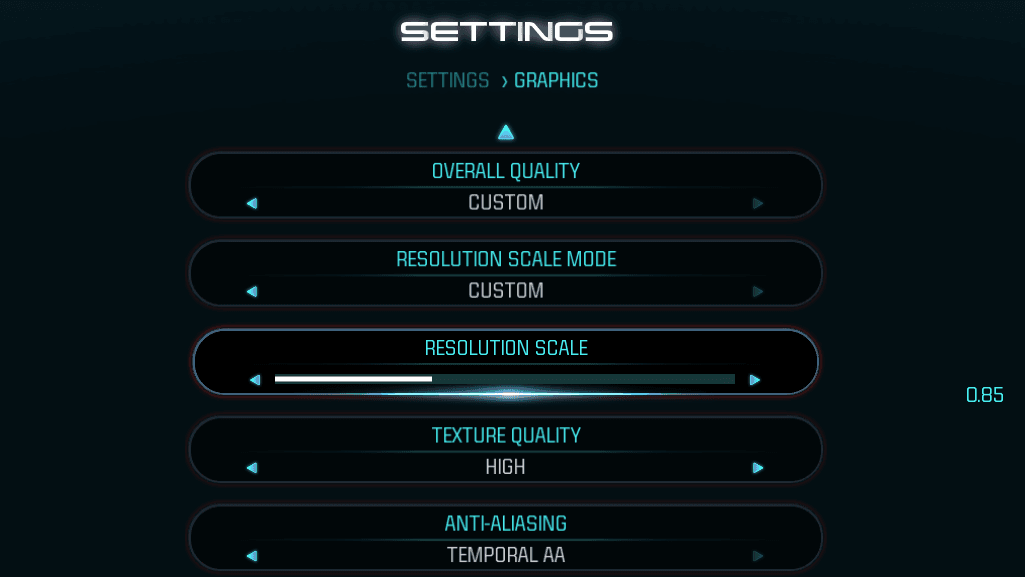
- DLSS (Deep Learning Super Sampling): Set to “Performance” for 4K or “Balanced” for 1440p. This AI‑upscaler shaves 20‑30 % off GPU load while keeping crisp textures.
- Ray Tracing: Disable full‑scene ray tracing; enable “Reflections” only if your GPU exceeds 12 TFLOPs. Selective ray tracing preserves realism without choking frame rates.
- Shadow Quality: Drop to “Medium”. Shadows are often the biggest performance drain, and medium shadows remain visually acceptable in most scenes.
- Texture Quality: Keep at “High” if you have >8 GB VRAM; otherwise, “Medium” prevents texture pop‑in while saving memory.
- Ambient Occlusion: Switch to “SSAO” instead of “HBAO+”. The simpler algorithm reduces GPU cycles dramatically.
These five tweaks appear in the Best Graphics Settings recommendations for titles ranging from Resident Evil Requiem to Dota 2. The consensus: prioritize frame‑rate‑critical options first, then polish with AI‑based upscaling.
Game‑Specific Tweaks for 2026 Hits
VALORANT remains a 2026 esports staple. The community guide advises a 1024×768 stretched resolution, 400 DPI sensitivity, and turning off all post‑process effects. This combination maximizes visibility of enemy silhouettes while keeping input lag at a minimum.
Dota 2 players benefit from lowering “Particle Quality” and “Effect Detail” to “Low”. The game’s UI stays crisp, and the FPS boost is noticeable in large team fights.
Warzone Beta introduces a new “Performance Mode” that forces a 144 FPS cap and disables most ray‑traced elements. Pair this with Nvidia’s app preset “DLSS Performance” for the smoothest firefights.
Crimson Desert runs well on both RTX 4080 and RTX 3060 Ti when you follow the benchmark‑approved settings: DLSS “Balanced”, Shadows “Medium”, and “Texture Streaming” turned off. The result is a lush open world that still hits 60 FPS on a 1080p monitor.
Resident Evil Requiem shows a 23 % performance gain when you lower “Global Illumination” to “Low” and enable “DLSS Performance”. The horror atmosphere stays intact, but you no longer hear the dreaded stutter during chase sequences.
Optimizing Nvidia Control Panel for Maximum Gains
Beyond in‑game menus, the Nvidia Control Panel holds hidden levers. A July 2026 article highlighted five settings to change ASAP:
- Set “Power Management Mode” to “Prefer maximum performance”.
- Enable “Threaded Optimization”.
- Force “Maximum Pre‑Rendered Frames” to 1 for ultra‑low input lag.
- Turn off “Vertical Sync” unless you’re fighting screen‑tear on a 60 Hz display.
- Adjust “Low Latency Mode” to “Ultra”.
When these are combined with the in‑game Best Graphics Settings, even a mid‑range RTX 3060 can sustain 144 FPS in most modern shooters.
FAQ
Q: Do I really need to sacrifice visual fidelity to gain FPS?
A: Not necessarily. By leveraging DLSS and selective ray‑tracing, you can keep most of the visual polish while shaving off 20‑30 % of GPU load. The key is to target the settings that impact performance the most—shadows, ambient occlusion, and post‑process effects.
Q: How do I know which settings are “performance‑critical” for my favorite game?
A: Look for community‑tested benchmarks, like the “Best Graphics Settings” guides for Warzone Beta and Crimson Desert. Those articles list the exact sliders that cause the biggest FPS swings. If a setting isn’t mentioned, it’s usually safe to keep it high.
Q: Will these settings work on laptops?
A: Yes, especially when paired with the Nvidia “Power Management” tweak. Laptop GPUs benefit even more from DLSS because they often run hotter. Lowering shadow and ambient occlusion quality can keep thermals in check while still delivering a fluid experience.
Final Thoughts
In 2026 the myth of “either high FPS or high fidelity” finally crumbles. By focusing on the proven Best Graphics Settings—DLSS, selective ray tracing, and the classic performance‑first sliders—you can dominate in competitive titles, explore open‑world masterpieces, and keep your hardware humming happily. Apply these tweaks, test with your own benchmarks, and enjoy the sweet spot where speed meets beauty.