EA FC 24 has hit the gaming scene with a host of visual upgrades and enhanced mechanics. While the game shines on current-gen consoles, PC gamers have the luxury of fine-tuning their experience with precise graphical settings. Here are some key tips to get the best out of your EA FC 24 gaming experience on PC.

Before diving into in-game settings, you can optimize your PC for gaming in Windows:
- Activate Game Mode: Enabling Game Mode allocates more system resources to your game, optimizing performance.
- Disable Xbox Game Bar: Known for causing crashes and stuttering, turning off the Xbox Game Bar can enhance stability.
- Enable Hardware-accelerated GPU Scheduling: This feature can improve graphical performance, reduce input lag, and address GPU bottlenecks, potentially boosting performance by 2-5%.
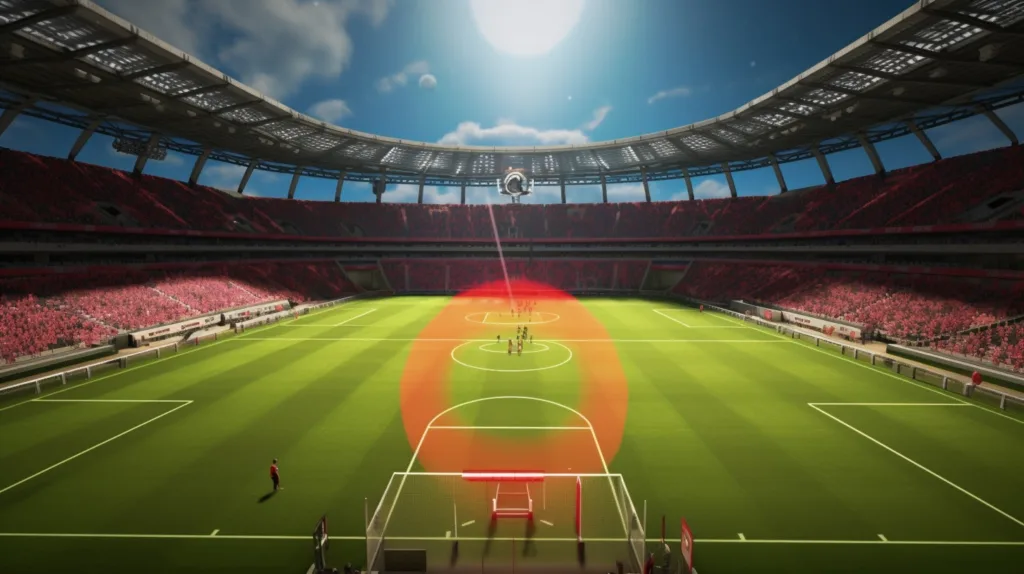
Now, for in-game settings:
- Resolution: Set to match your monitor’s resolution.
- Display Mode: Opt for Full Screen to minimize stuttering.
- Refresh Rate: Maximize to match your monitor’s capabilities.
- Frame Rate: Remove FPS limits.
- Vertical Sync: Disable for improved performance.
- Dynamic Resolution Scale: Keep it off.
- Cutscene Quality: Lower to half frame rate.
- Stranded Hair: Turning this off can boost frame rates by 5-6%.
- Rendering Quality: Choose High.
- Grass Quality: Set to Medium.
- Crowd Quality: Opt for Low.
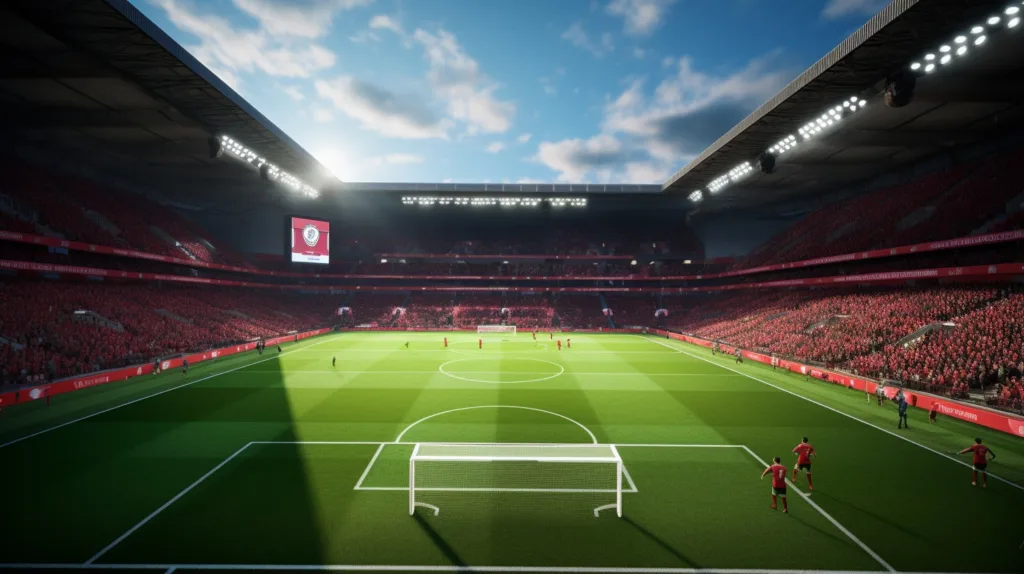
These settings strike a balance between visuals and performance, ensuring a smooth gaming experience on your PC.