Learn to maximize Cities: Skylines 2’s photo mode for stunning city shots and effortlessly locate your saved screen shots.
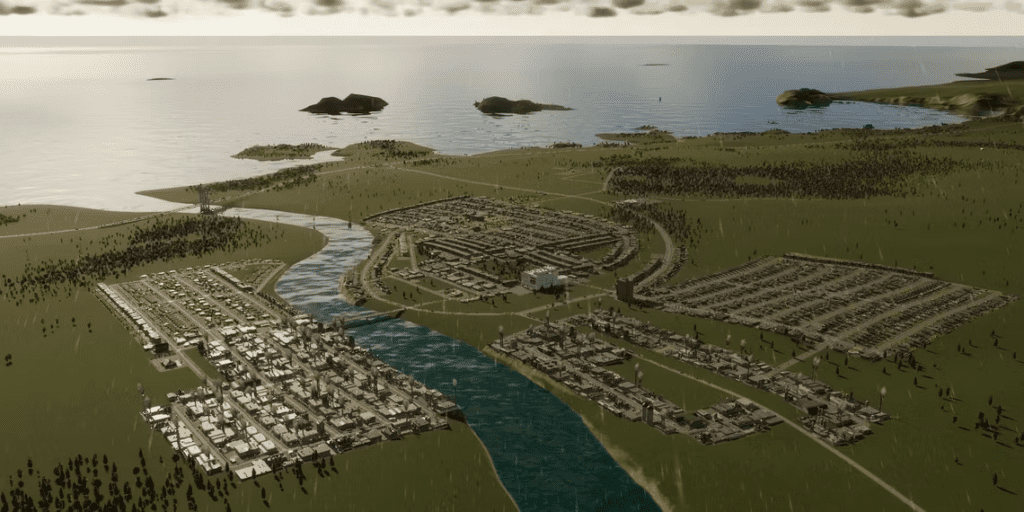
In Cities: Skylines 2, players can create impressive urban landscapes, high lighting architectural masterpieces with the in-game photo mode. Enabling players to capture cityscapes free of interface elements, this feature offers extra options for photography enthusiasts. Taking screenshots in Cities: Skylines 2 is a slightly different process compared to its predecessor, but it’s a straightforward one. Quickly grasp photo mode tips and find saved screenshots with this guide’s overview for optimal usage.
Cities: Skylines 2 Photo Mode

Accessing the photo mode is a breeze. Simply click on the camera icon located in the bottom-right corner of the screen. Executing this action removes the default interface, replace it with a compact menu for capturing cityscapes creatively.
The bottom row in the initial window of the photo mode menu features three essential buttons. The first button captures the current scene, the middle button eliminates all user interface elements (press Esc to restore the UI), and the last button activates Orbit Mode, allow the camera to zoom out significantly farther, making it ideal for capturing wide or bird’s eye views of extensive cities.
In addition to adjusting the cameras lens setting and fine tuning color mixing, players can also manipulate the weather and time of day while in photo mode — a feature appreciated by many. The settings encompass sliders and controls for cloud cover, fog density, and atmospheric visuals, enabling players to visualize their cities under varying weather conditions. Meanwhile, the time settings section includes a straight forward clock adjustment and a simulation speed modifier, facilitating the creation of timelapse videos or cinematic drone shots.
Screenshot Save Location
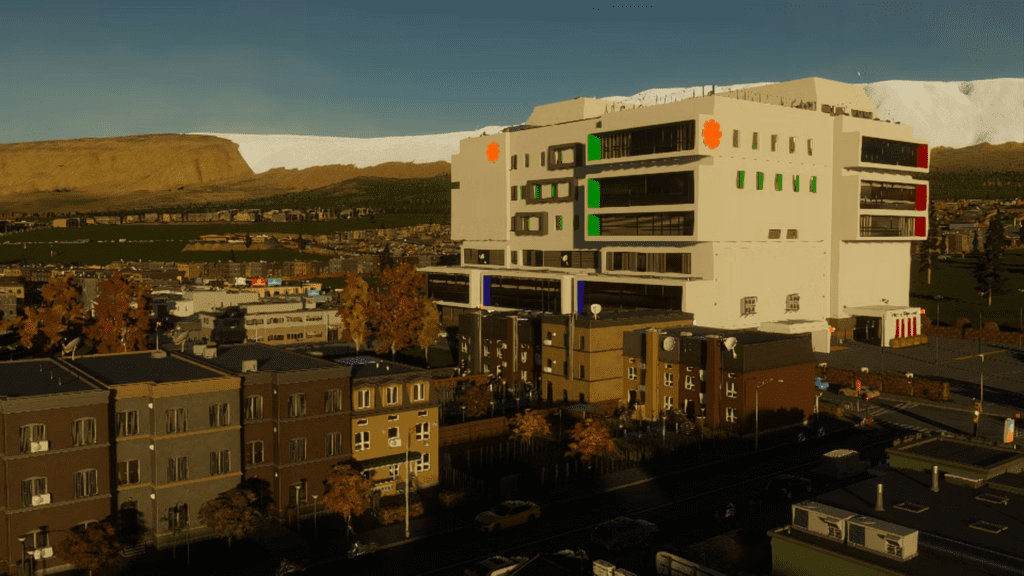
Contrary to the original Cities: Skylines, the sequel stores screen shots in a different location on the player’s PC. By default, the game’s photo mode saves all screenshots in the AppData folder, specifically:
C:\Users\[user]\AppData\Local\LocalLow\ColossalOrder\Cities Skylines II\screenshots
For players who may encounter difficulties accessing this path through standard Explorer navigation, employing the Windows Search function is recommended. By entering %appdata% in the search bar or via the Run window (Win+R), users can easily locate the folder. The resolution of the saved screenshots matches the game’s settings at the time when the image was captured.
Alternatively, players have the option to make all files and folders visible in Windows Explorer by navigating to the View tab and selecting the Hidden Items option from the Show list.
For the latest gaming Guides, Updates and News, don’t forget to visit our dedicated gaming page. GAMING GUIDES Stay informed and level up your gaming experience with our fresh content!