Unlocking World Access: The Keyholder Guide in LEGO Fortnite
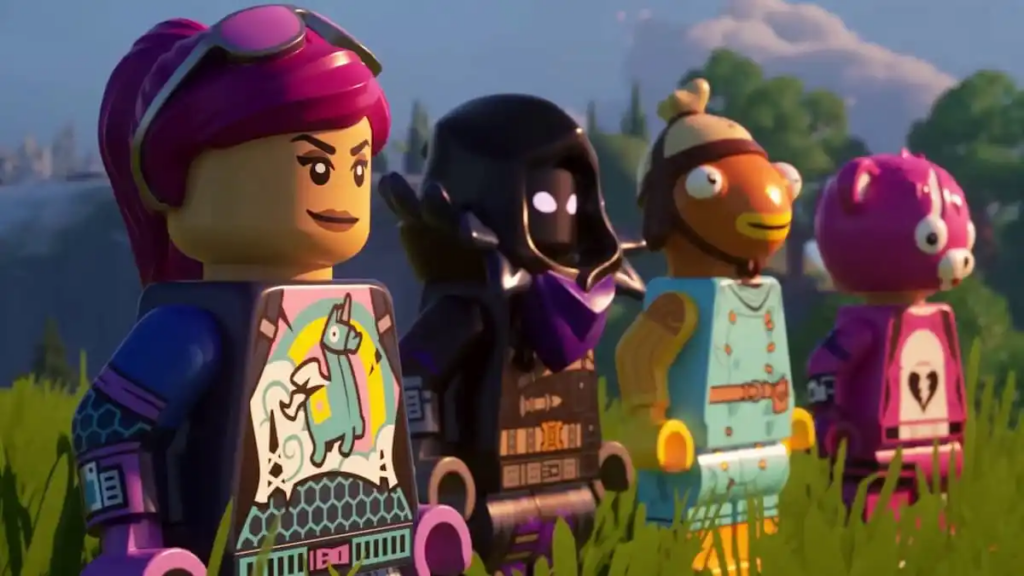
Fortnite meets LEGO in the latest chapter of the iconic game, bringing a new dimension to the gaming world with its blocky adventures. LEGO Fortnite, an open-world sandbox game, combines elements of survival and crafting, akin to the beloved Minecraft. As players venture into randomly generated worlds to battle monsters and construct their brick-based villages, the option to invite friends for a collaborative experience becomes an exciting feature.
In LEGO Fortnite, the concept of ‘Keys’ plays a pivotal role, allowing players to share their worlds with friends by making them Keyholders. This guide aims to elucidate the process of making someone a Keyholder, enabling them to enjoy full access to the shared world even when the owner is offline.
What is the Role of a Keyholder in LEGO Fortnite:

A Keyholder in LEGO Fortnite holds a special status within a world. With a key, players can grant access to up to seven trusted friends, transforming them into Keyholders. This designation provides the freedom to enter and exit the world at will, regardless of the owner’s online status. Keyholders possess the same permissions as the host, allowing them to build, modify, and contribute to the shared world even when the host is offline. All changes made by Keyholders are permanent and visible to all other Keyholders.
How to Make Someone a Keyholder in LEGO Fortnite:
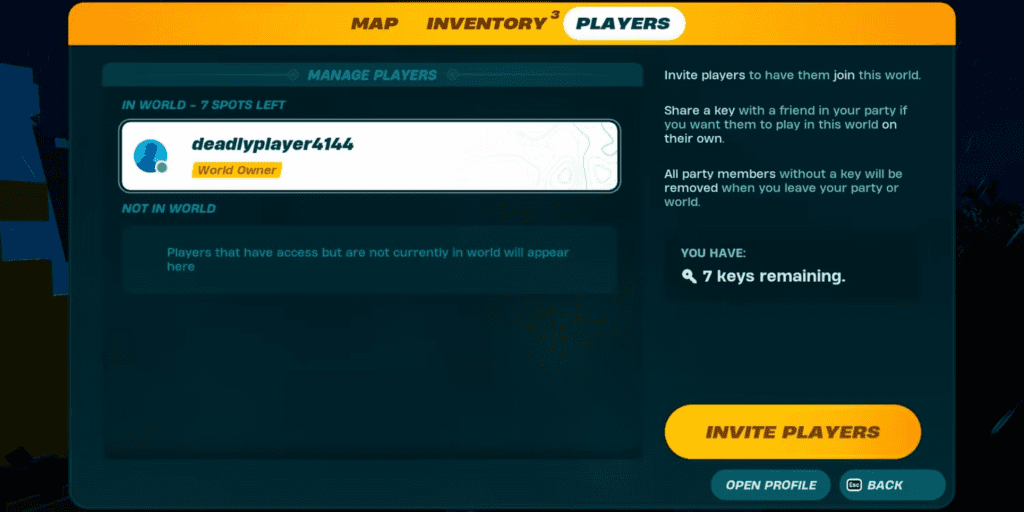
Sharing a key with a friend is a straightforward process. Follow these steps:
- Launch LEGO Fortnite and invite a friend to your custom world.
- Open the Map or Inventory menu (M or I keys, respectively).
- Navigate to the “Players” tab.
- From the list of players, select the friend you want to grant access to.
- Click on the “Share Key” option.
- Confirm the action when prompted.
Upon successful completion, a pop-up will notify you that “[PlayerName] is now a keyholder for this world.”
How to Remove Keyholders in LEGO Fortnite:

If the need arises to remove key privileges from a friend, follow these steps:
- Launch the LEGO Fortnite world.
- Open the Map using the M key.
- Navigate to the “Players” tab.
- Select the Keyholder’s name.
- Click on “Remove Key” to revoke their key privileges.
Unlock the potential for collaborative adventures in LEGO Fort-nite by wisely choosing your Keyholders and exploring the blocky landscapes together.
For the latest gaming Guides, Updates and News, don’t forget to visit our dedicated gaming page. GAMING GUIDES Stay informed and level up your gaming experience with our fresh content!