Discover how the latest update in Disney Dreamlight Valley enables players to customize their village by adding or removing villagers.

In the recent update of Disney Dreamlight Valley, players can now curate the population of their village by selecting preferred villagers to roam its landscapes. This functionality allows for a more tailored and personalized gaming experience, letting players decide who they want to see in their virtual haven.
How to Manage Villagers in Dreamlight Valley
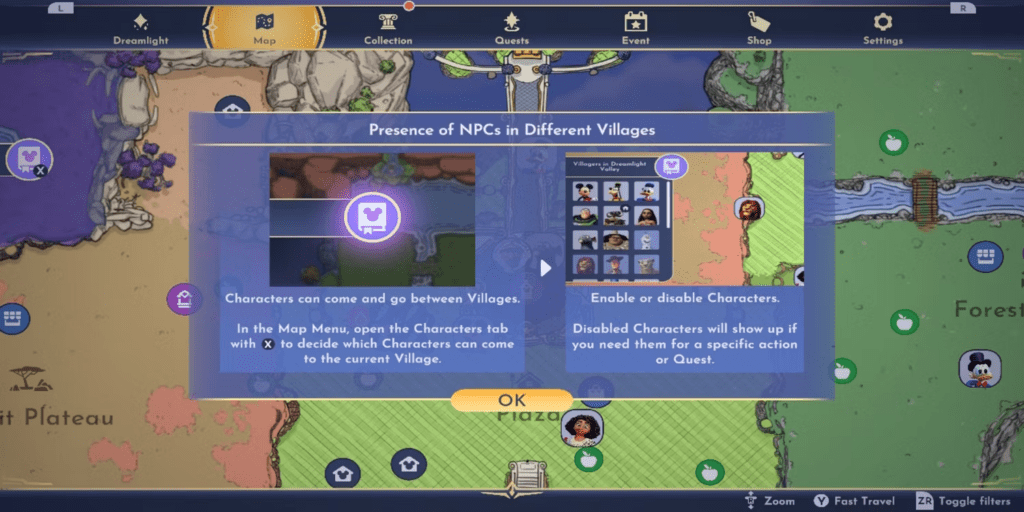
Accessing the Friends List
To utilize the feature that allows for adding and removing characters, players need to access the main menu and navigate to the map section. On the map screen, a small icon positioned on the left side, depicting a book with Mickey’s ears, serves as the entry point to the Friends List.
Note: This feature becomes available after downloading the update accompanying the latest expansion.
Adding or Removing Villagers
Upon opening the list of unlocked villagers, players can scroll through and designate unwanted characters by graying them out. Even after graying them out, these characters might still appear on the map if they have ongoing quests. This visual cue can help players keep track of pending Dreamlight Valley quests.
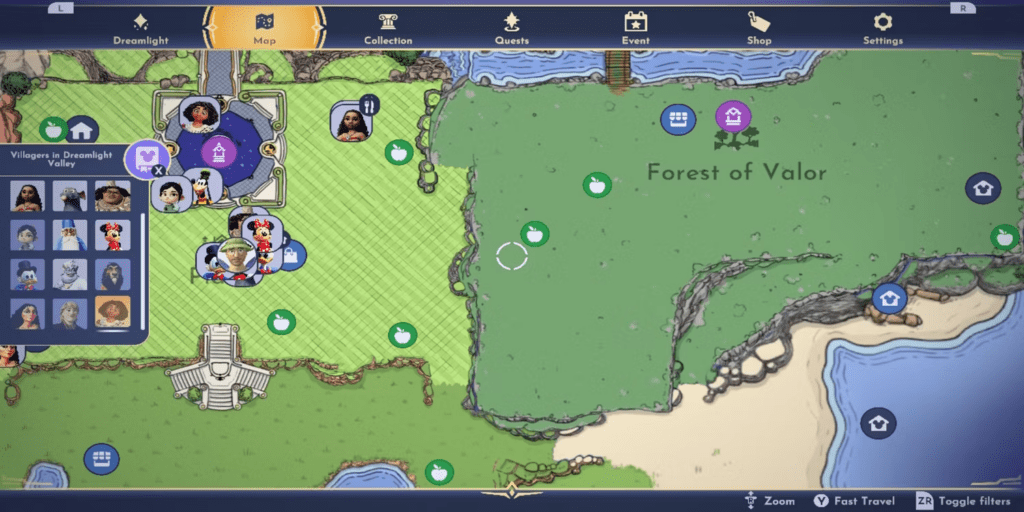
The selection of a character may not immediately remove them from the world. The changes take effect only upon entering a building within the game. Characters absent from the world won’t engage in valley activities or interactions unless tied to a mission.
If a player wishes to bring back a previously removed character, they can simply access the Friends List, deselect the character, and then enter a building to restore their presence. Players can craft a personalized, spacious village or meet specific villagers during their adventures with this new feature.